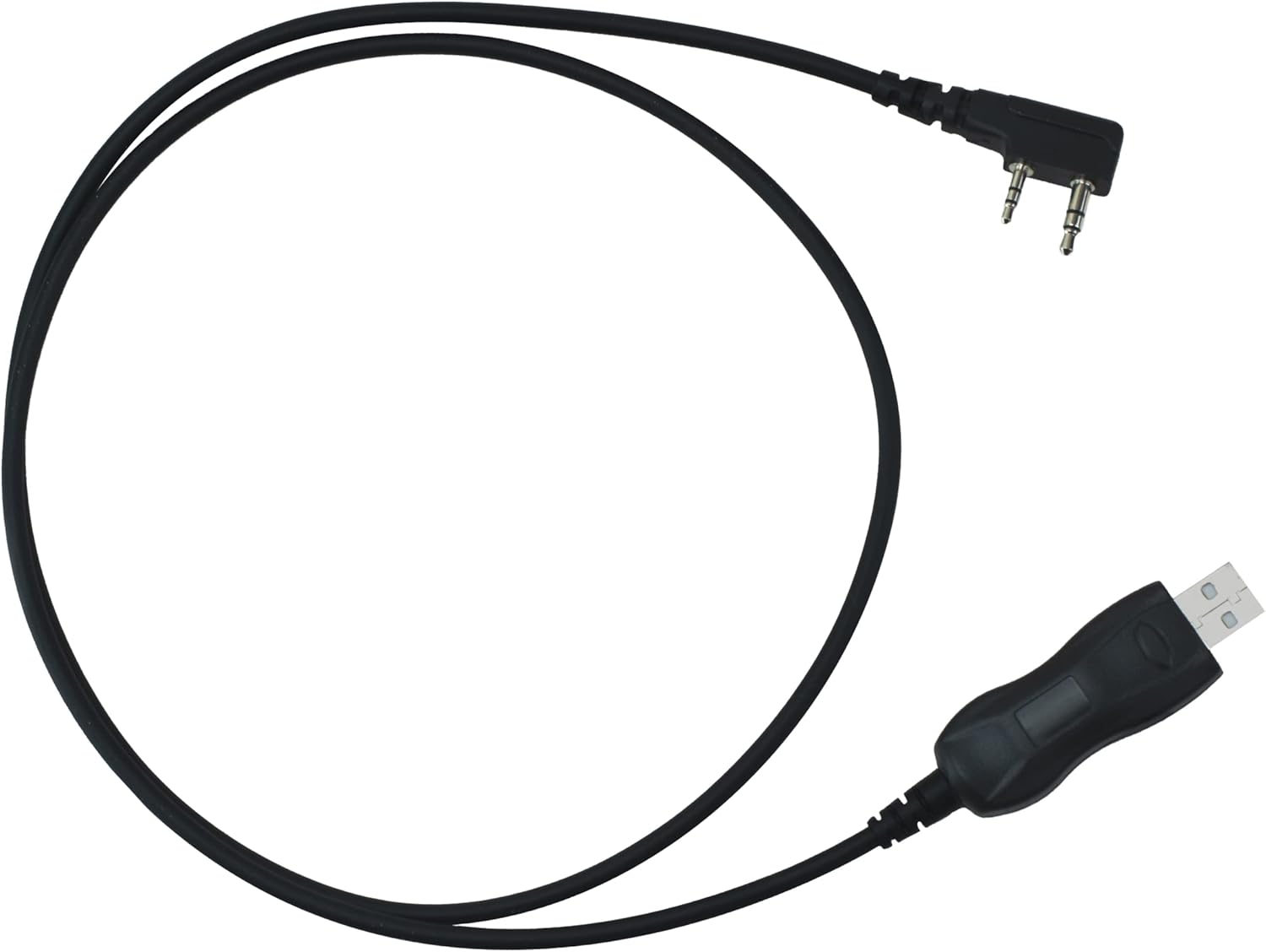
The most common Baofeng frustration has nothing to do with the radio. It’s the programming cable. You plug it in, open CHIRP, and… nothing. No COM port. Or a yellow warning triangle in Device Manager. This exact problem eats an hour of every new ham’s life, and the fix is almost always one of three things: the driver, the chip, or the connector.
Why It Happens
Nearly all cheap Baofeng-style programming cables use one of two USB-to-serial chips: the CH340 (made by WCH) or the Prolific PL-2303. The CH340 is fine — it just needs its driver installed. The PL-2303 is where the real pain lives: a huge share of the cables on the market use counterfeit Prolific chips, and Prolific’s newer drivers deliberately refuse to work with them (you’ll see “Error Code 10: device cannot start” in Device Manager). The cable isn’t broken. The driver is rejecting the chip on purpose.
Step 1: Check What Your Computer Sees
Windows: Open Device Manager (Win+X → Device Manager) and expand “Ports (COM & LPT)”. Plug the cable in and watch what appears.
- “USB-SERIAL CH340 (COMx)” — the driver is working. Note the COM port number; you’ll select it in CHIRP. Skip to Step 3.
- “Prolific USB-to-Serial” with a yellow triangle — counterfeit chip vs. new driver. Go to Step 2.
- Nothing appears at all — try a different USB port (USB 2.0 ports work more reliably than USB 3.0 for these old chips), and push the cable’s 2-pin connector into the radio firmly. The Kenwood-style connector needs a surprisingly hard push to seat fully — this alone fixes a shocking number of “dead” cables.
Step 2: Install the Right Driver
For CH340 cables: Download the official CH341SER driver from WCH (wch.cn) and install it. Windows 10/11 sometimes fetch it automatically via Windows Update, but the manual install is the reliable path. Reboot after installing.
For counterfeit Prolific cables: The fix is to install the old Prolific driver version 3.2.0.0, which predates the counterfeit-chip blocking. Uninstall the current driver from Device Manager first (check “delete the driver software”), then install 3.2.0.0 and — this is the annoying part — disable automatic driver updates for that device, or Windows Update will “helpfully” upgrade you back to the broken state.
macOS: Modern macOS usually needs the WCH CH34x driver installed manually; check System Settings → Privacy & Security afterward, because macOS loves to silently block it on first install. Linux: the CH340 driver has been in the kernel for years — if it doesn’t work, it’s the connector or the cable, not the driver.
Step 3: Match the Port in CHIRP
In CHIRP, go to Radio → Download From Radio and select the exact COM port from Step 1. The classic mistake is leaving it on the wrong port and concluding the cable is dead. If the download starts and then fails partway, the connector has wiggled loose — hold it steady and try again.
When to Stop Fighting It
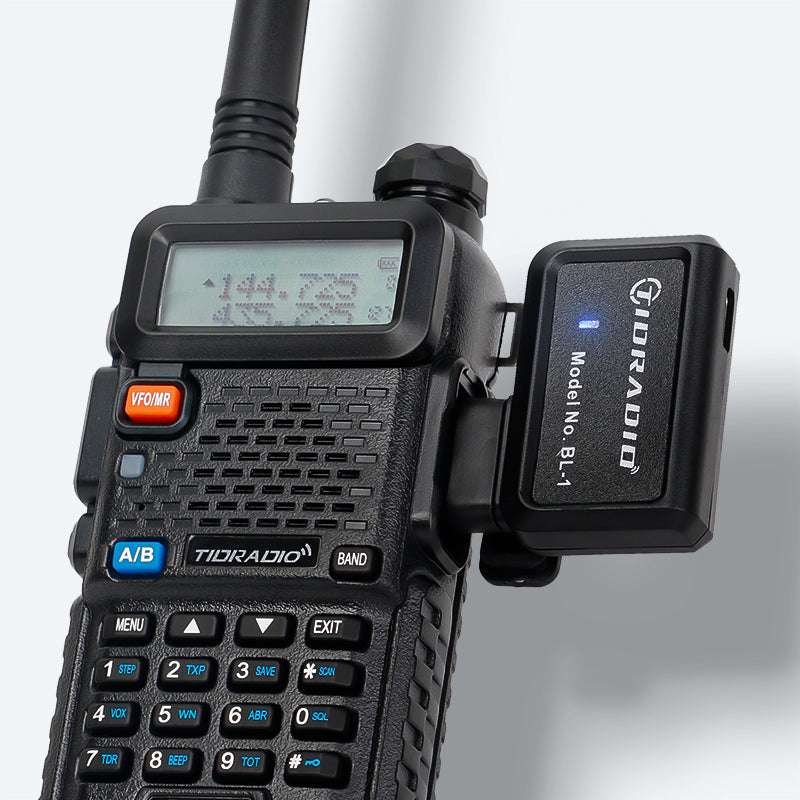
If you’ve done all of the above and the cable still won’t enumerate, the cable itself is probably just bad — quality control on $8 cables is what it is. At that point, buy a known-good cable once instead of a mystery cable three times: the BTech PC03 uses a genuine chip and is the cable we recommend. Or skip cables entirely — the TIDRADIO BL-1 programs supported radios wirelessly from your phone, no drivers involved.